These functions are available to authorized users only.
Add a New User
- Click the Admin tab.
- Hover over Users and select Add from the list.
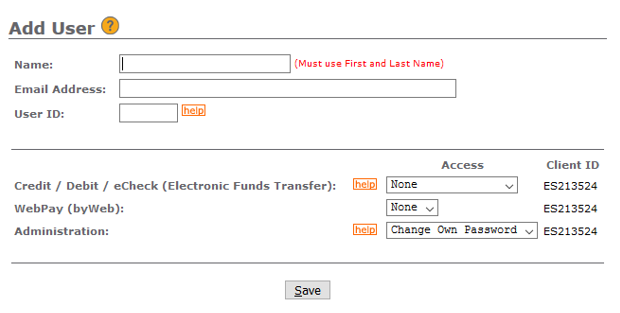
- On the Add User screen, enter the following information.
- Name of the User.
- Email address associated with the User – temporary password information will be sent to this email address.
- User ID – 8-50 character alpha-numeric id. Special characters cannot be used.
- Click Help to determine the appropriate access level for each individual user.
- Click Save to create the user record.
Edit, delete or deactivate an existing user
- Click the Admin tab.
- Hover over Users and select Search from the list.
- Enter the User id and/or the full or partial User Name.
- Click Search.
If the search query displays more than one User, double click on the correct username or highlight the name and click View.

- Make any necessary changes to the user record and click Save.
Deleting an Existing User
To delete a user, click Delete. Deleting a user is permanent and cannot be undone.
Deactivating a User
If you would like to temporarily deactivate a user, change the Status field in the list to Inactive and click Save. Inactive users can be reactivated at any time by an authorized user at your organization.